Cluster configurations
Change a dedicated database topology or compute size and follow the queued rollout to completion.
Use Cluster → Instances to change the replica topology or compute size of a provider-backed database.
Availability by plan
| Database plan | Cluster configuration |
|---|---|
| Developer (shared) | Not available. Parix owns the shared cell topology and capacity. |
| Dedicated / Production | Available when the active provider, region, topology, and size are supported by the live catalog. |
The Cluster navigation item and all of its tabs are hidden for shared databases. Shared customers can view their own quota and traffic signals on Metrics, but cannot resize the shared cell.
Before you begin
You need:
- an organization owner or administrator role to queue a change
- a Dedicated or Production database with an active profile
- no cluster workflow currently holding the profile in Provisioning
- an approved change window when the selected operation can restart replicas or require cutover downtime
- a recent eligible backup before any material production change, even when the workflow also creates its own migration backup
Changing topology or size can change the effective monthly price. Review the price shown on each size card before queueing.
Open Cluster configuration
- Select the organization.
- Open the database from Dashboard.
- Select Cluster in the database navigation.
- Select Instances.
The Cluster page has five tabs:
- Instances for topology and compute size
- Storage for storage type and capacity
- Parameters for the current TigerBeetle runtime controls
- Change Data Capture for direct or managed CDC
- Changes for durable configuration outcomes
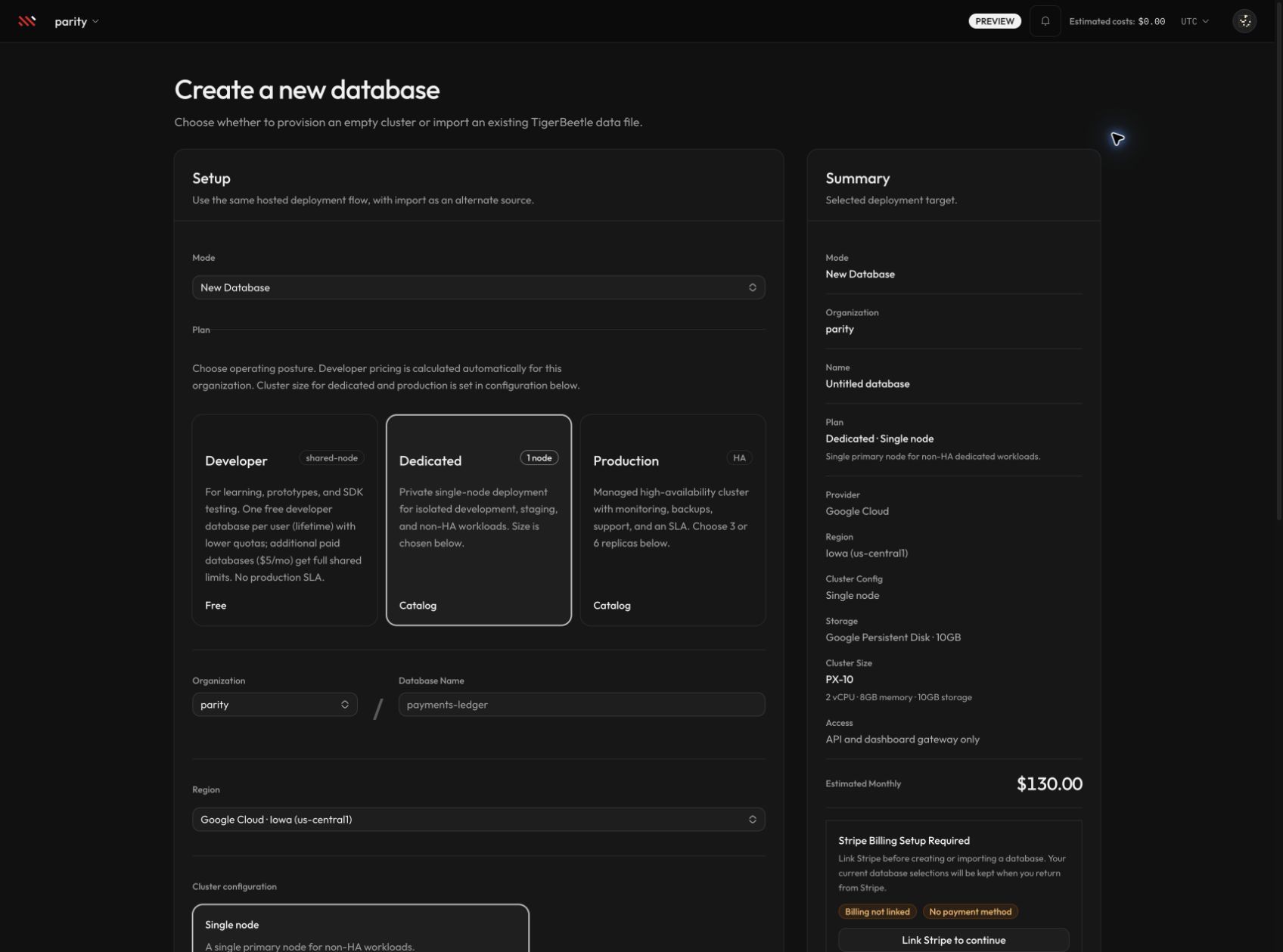
Topology, storage, and PX size are first selected during creation. The Cluster tabs edit the supported parts of that existing provider-backed profile; they do not move the database to another provider or region. Select the image to open it at full size.
Understand the controls
Cluster topology
Topology tiles are generated from the live catalog for the database's existing provider. Each tile shows the catalog label and description, or its node count when no description is present.
Changing topology means changing the replica layout or node count. It is different from selecting a larger compute size with the same number of nodes.
Cluster size
Size cards are filtered to the selected topology and provider variant. Each card can show:
- PX size label and SKU
- vCPU per node
- memory per node
- node count
- effective monthly price for the current storage selection
Select a topology first. If the previously selected size does not exist for the new topology, the page chooses the first compatible size.
The action label is Queue instance changes for an in-place change or Queue backup-driven migration when a GCP node-count change requires replacement and cutover.
Change topology or size
- In Cluster topology, select the required replica layout.
- In Cluster size, select a compatible PX size.
- Compare node count, vCPU, memory, and monthly price with the current deployment.
- Read the provider notice beneath the controls.
- If the page reports backup-driven migration, notify application owners of the planned unavailability.
- Select Queue instance changes or Queue backup-driven migration.
- Open Changes and follow the new row until it reaches a terminal state.
If the effective topology and size match the active profile, Parix skips workflow creation and reports No instance changes to queue.
Workflow and status behavior
The browser does not edit provider infrastructure synchronously. After validation, Parix records change context and queues one of two workflow paths:
- Rolling in place for a supported compute mutation that keeps the same node count.
- Backup-driven migration for a supported GCP topology change. Parix creates a fresh backup, provisions the target shape from it, and cuts traffic over during controlled downtime.
The profile can report Provisioning while the workflow runs. The Changes tab keeps up to the latest 100 durable change records and shows:
| Status | Meaning |
|---|---|
| Pending | The change was accepted and is waiting to start. |
| In progress | The provider workflow is applying the change. |
| Completed | The new profile converged and is active. |
| Failed | The workflow ended with an error and requires investigation. |
The table also shows the actor, start time, and end time. It is an outcome history, not a transcript of every internal workflow step.
Expected result
A successful submission immediately reports that the instance change or backup-driven migration was queued. When Changes reaches Completed, return to Dashboard and confirm that the active topology, size, and database status match the request.
Provider and storage limitations
- The options shown by the live catalog are authoritative for the current environment, provider, region, and topology. Do not assume an option described elsewhere is purchasable when it is absent from the page.
- This page cannot migrate a database between providers or regions.
- GCP topology changes use backup-driven migration and controlled downtime.
- AWS topology changes are currently blocked because the implemented AWS path does not yet have backup-driven migration for this operation.
- AWS-backed code paths may exist for current or non-production deployments even when AWS is not offered for new production databases in the create catalog.
- GCP and AWS local NVMe clusters allow initial provisioning, backup, and supported restore, but block post-create topology and cluster-size changes in the current product version.
- A storage-backend change to or from Local NVMe or GCP Hyperdisk is not a topology shortcut; provision a new target database instead.
Downtime and data-safety warnings
GCP backup-driven migration preserves data through a fresh migration backup, but the database is unavailable during cutover. Stop or buffer writes before the announced cutover window and do not treat the queued response as completion.
An in-place workflow can still restart or replace replicas. A single-node Dedicated database has no second replica to serve during a restart, so schedule a maintenance window whenever continuity matters. Production topologies reduce that exposure, but the dashboard does not promise zero downtime for every mutation.
Do not delete the source database or change other cluster settings while a workflow is active.
Troubleshooting
Cluster is missing from navigation
The database is on a Developer/shared plan. Shared topology is managed by Parix and cannot be changed per tenant.
The queue button is disabled
Check, in order:
- You selected both a topology and a compatible size.
- The selection differs from the active profile.
- The profile is not already Provisioning.
- The deployment is not Local NVMe.
- The request is not an AWS topology change.
- Your organization role is owner or administrator.
A size disappeared after selecting a topology
That size has no purchasable provider variant for the selected topology. Choose one of the remaining cards; catalog variants, not generic PX labels, determine availability.
The page reports no changes to queue
The effective catalog selection matches the active profile. Refresh the page, confirm the current values, and change only the field you intend to mutate.
A queued change failed
- Open Changes and record the change description, actor, start time, and failed status.
- Check Logs around that time.
- Confirm the database profile is no longer stuck in Provisioning.
- Do not immediately queue a second shape change; use the captured workflow context for support or follow the failure guidance on Provisioning and configuration.
Next steps
- Configure capacity in Storage configurations.
- Tune the supported GCP control in Parameter configurations.
- Configure delivery in Change Data Capture configurations.
- Review Backup and restore before a production change window.