Quickstart
Create a Parix database, connect securely, and verify your first TigerBeetle operation.
This quickstart takes you through the shortest complete Parix workflow: choose a database plan, create the database, wait for it to become ready, configure an API key, and run a safe read operation.
You can complete the walkthrough entirely in the dashboard. The detailed guides linked from each step explain API alternatives, plan restrictions, and failure recovery.
Before you begin
You need:
- a Parix account and an active organization
- permission to create a database in that organization
- an organization owner or administrator if Stripe billing must be linked or repaired
- a secure place to store an API-key secret if you plan to connect an application
Parix offers three operating postures:
| Plan | Deployment | Choose it when |
|---|---|---|
| Developer | Shared Parix-operated cell | You are learning, prototyping, or testing an integration. The first eligible Developer database is complimentary; additional Developer databases are billed. |
| Dedicated | Private single-node deployment | You need isolated development, staging, or another non-HA workload. |
| Production | Private high-availability deployment | You need a 3- or 6-replica production topology and the production support posture. |
Developer databases expose Dashboard, Connect, Query, Metrics, and Settings. Dedicated and Production databases additionally expose cluster configuration, logs, backups, CDC, webhooks, changes, and upgrade controls.
See Plans and limits before choosing a production posture.
1. Create a database
- Open the organization dashboard.
- Select New database, then New database.
- Choose Developer, Dedicated, or Production.
- Enter a database name.
- Choose the placement and configuration options available for that plan.
- Review the estimated monthly cost and access model in Summary.
- Select Create Free Developer Database, Create Database, or the equivalent action shown for your selection.
For Developer databases, select a shared region and optionally permit fallback to another configured shared region if the selected pool fills during creation.
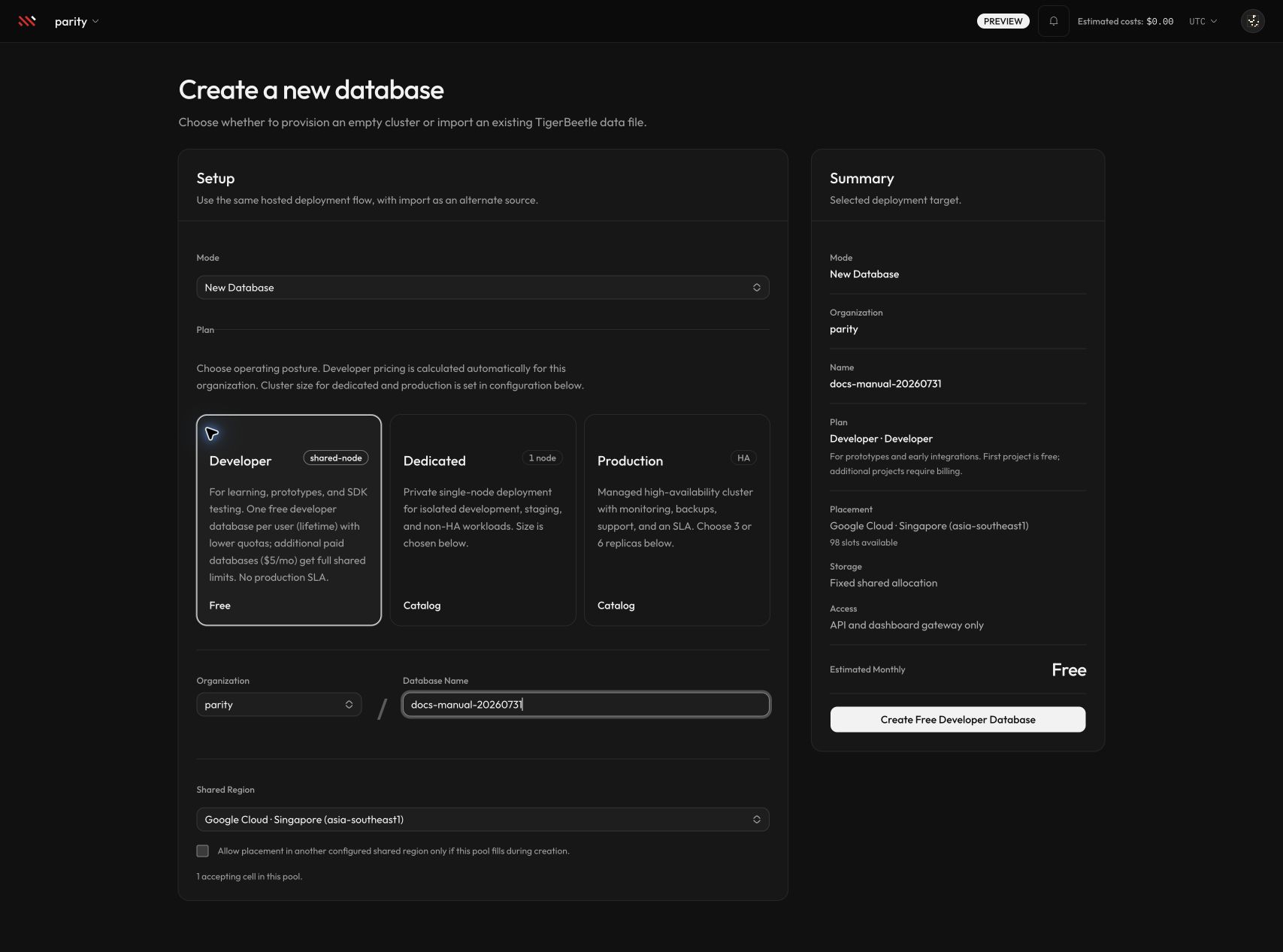
The Developer flow shows shared placement, capacity, quotas, and the current price before creation. Select the image to open it at full size.
Dedicated and Production plans add provider, region, topology, storage, and PX size choices. Paid creation is blocked until the organization has a usable Stripe billing setup.
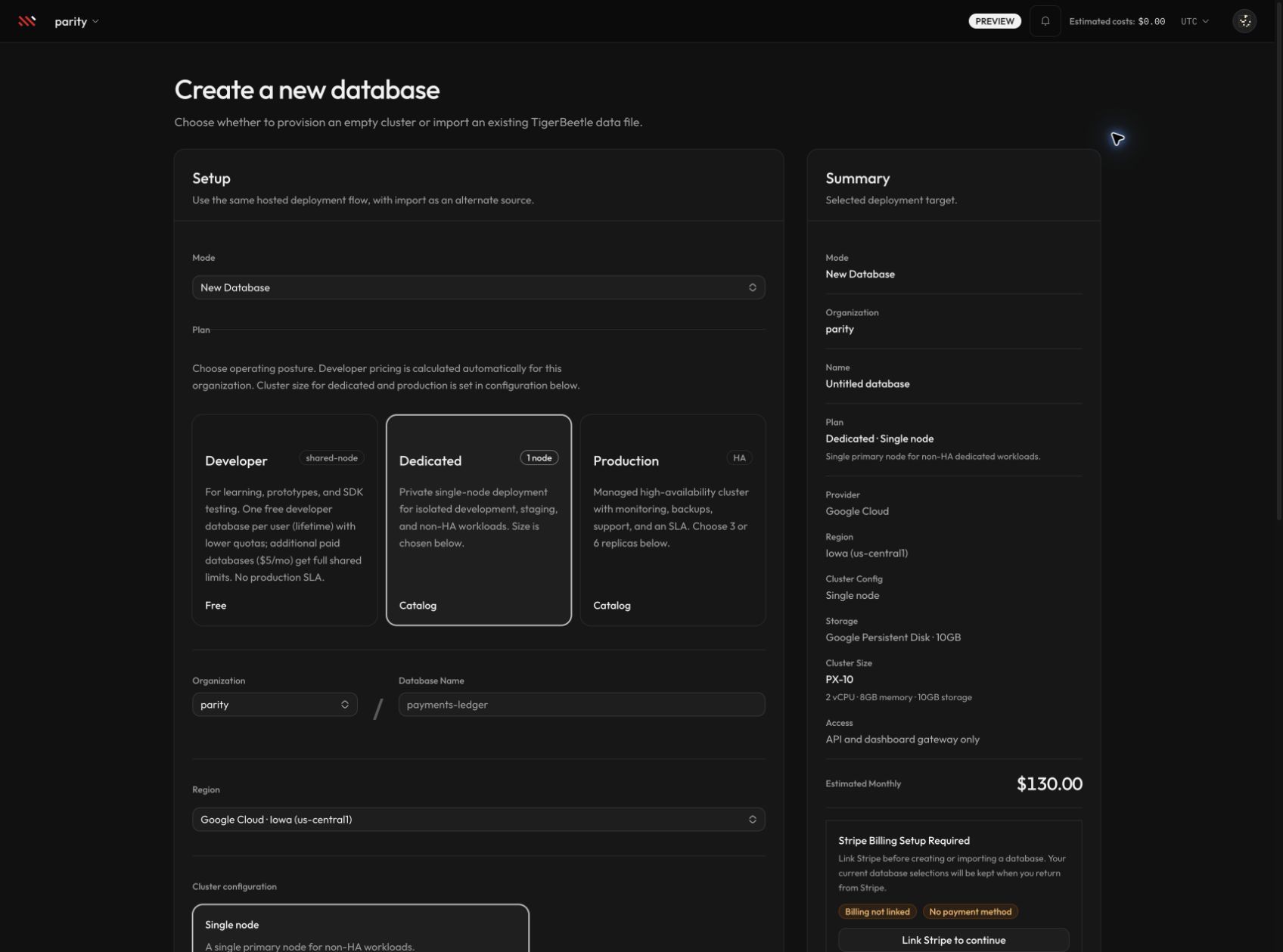
The paid-plan form keeps infrastructure choices and estimated monthly cost together. Select the image to open it at full size.
For field-by-field guidance, see Create a database. To bring existing TigerBeetle replica files into Parix, use Import a database.
2. Wait for the database to become ready
Creation starts a durable provisioning workflow. The database can move through these user-visible states:
- Not provisioned: the database record exists, but provisioning has not started successfully.
- Provisioning: Parix is creating or assigning the data-plane resources.
- Ready: the database can accept gateway operations.
- Error: provisioning failed and the dashboard may offer Retry.
- Deleting or Delete failed: a deletion workflow is active or needs attention.
Do not configure production traffic until the database dashboard reports Ready.
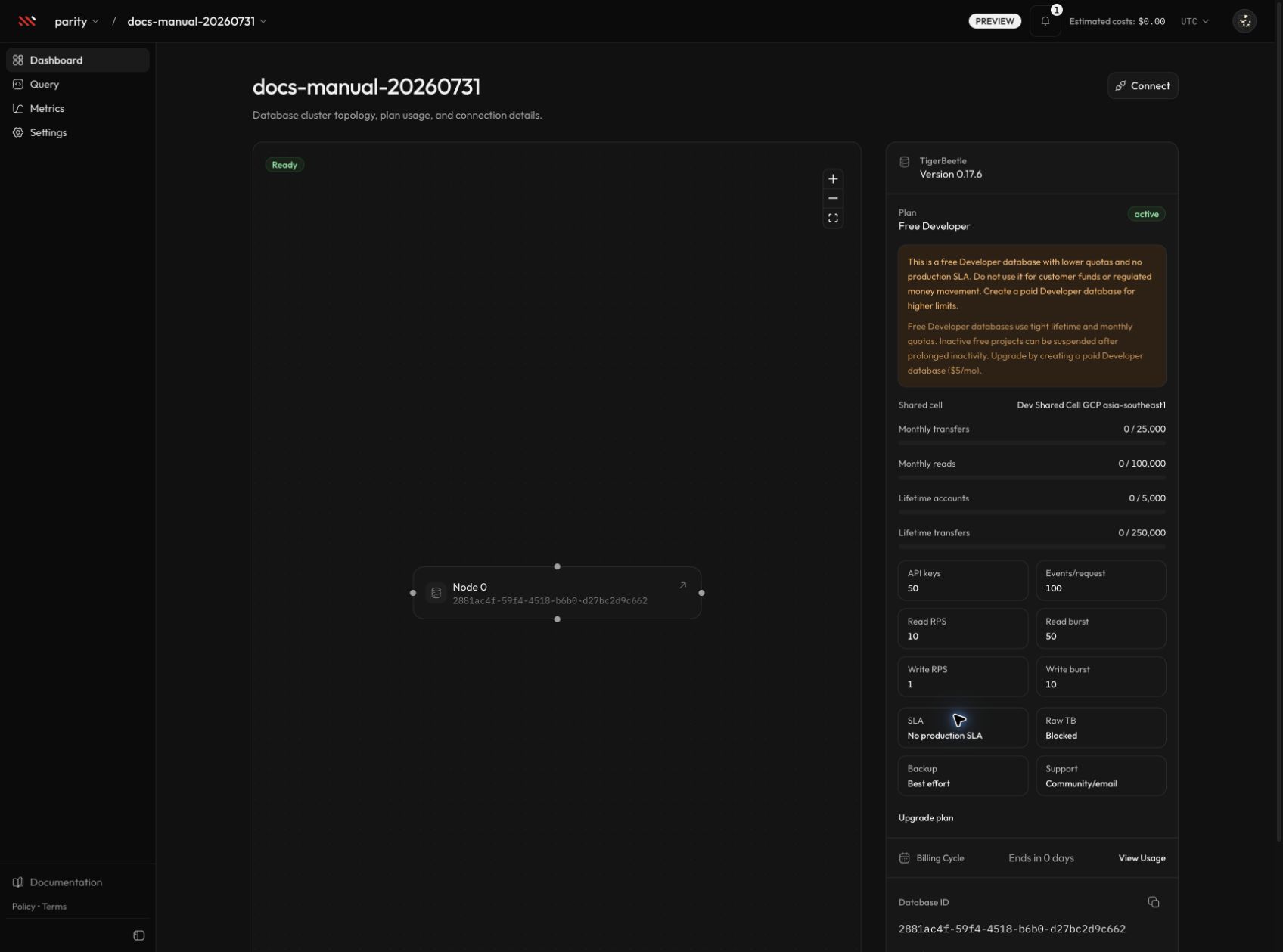
A ready Developer dashboard shows placement, plan limits, identifiers, usage, and the gateway-only access posture.
The dashboard route uses the database name, while API calls use the database UUID shown as Database ID. Treat them as separate identifiers.
3. Connect an application
Select Connect on the database dashboard. The connection guide has three steps:
- Install a language client as shown in Connect: Node.js offers a source-staged Parix preview (
@parix/tigerbeetle-node, not a GA npm package); other languages use the upstream TigerBeetle client or authenticated HTTP to/api/v1. - Generate an API key and send it with each authenticated request.
- Run the provided lookup example to verify the connection.
API-key secrets are displayed once. Store the value in a secret manager or local environment variable, never in source control.
export PARIX_API_KEY="px_..."Parix database access is gateway-only on every plan. Applications do not connect directly to TigerBeetle replica addresses.
Follow Connect to a database for language tabs, scopes, endpoint examples, and expected errors.
4. Verify a read operation
Open Query and leave Query accounts selected.
- Keep a small positive limit such as
100. - Select a ledger or All known ledgers when that option is available.
- Select Run.
An empty database returns no rows; that is still a successful connectivity check. Authentication, validation, rate-limit, and gateway failures appear as structured operation errors instead.
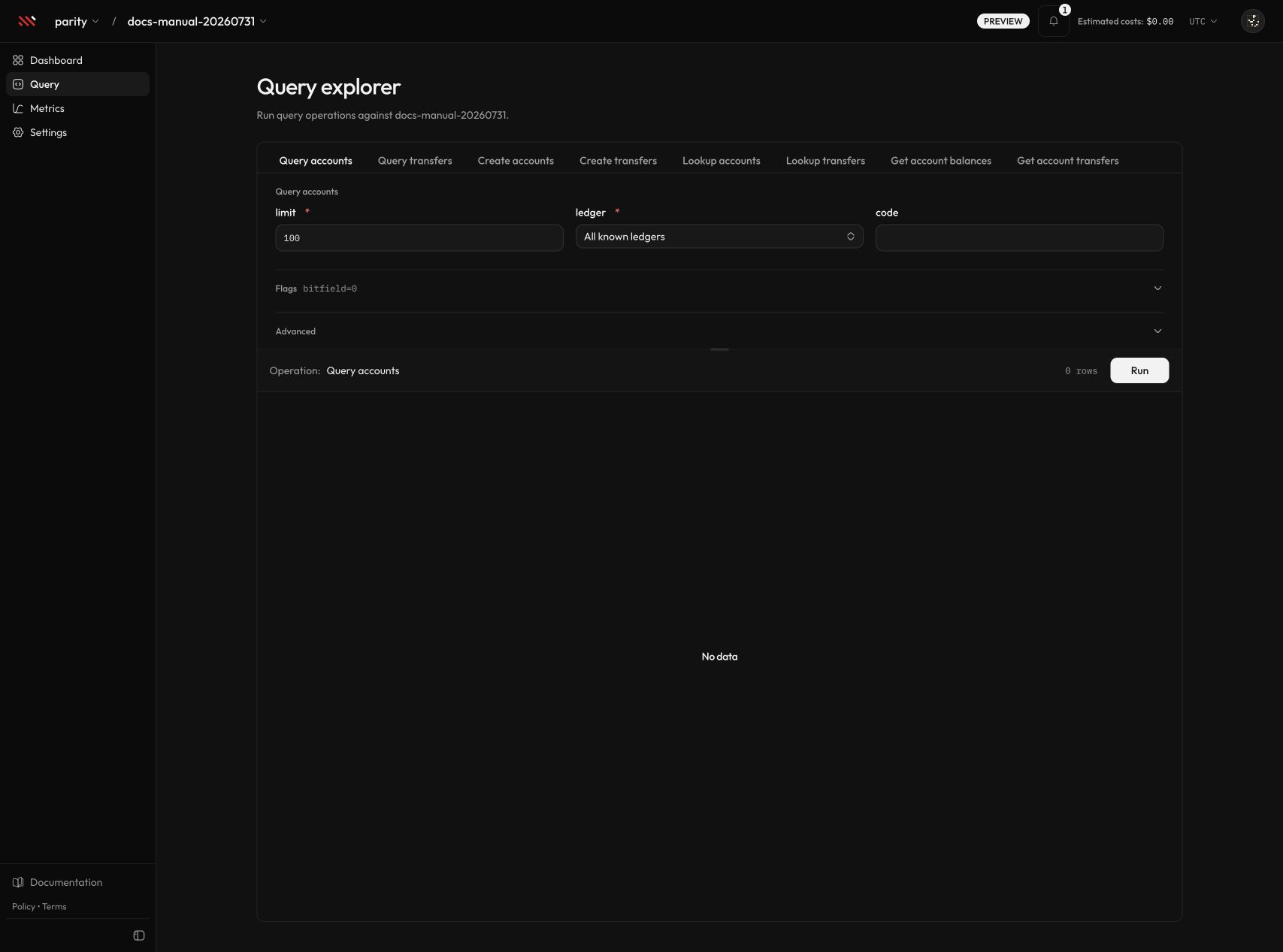
The query explorer exposes the same supported operation families as the HTTP TigerBeetle route.
For the operation list, fields, flags, limits, and result behavior, see TigerBeetle operations.
5. Confirm operational ownership
Before moving beyond a prototype:
- choose an API-key scope that grants only the required databases and operations
- review plan quotas and rate limits on Dashboard and Metrics
- confirm who receives billing, lifecycle, and failure notifications
- understand the backup and restore behavior available to the selected plan
- record the database name, database ID, provider, region, and support context
Documentation map
| Goal | Read next |
|---|---|
| Understand the product and plan boundary | What is Parix? and Plans and limits |
| Create, import, or remove a database | Getting started and Database lifecycle |
| Connect an application securely | Connecting and API-key security |
| Run TigerBeetle operations | TigerBeetle operations |
| Monitor quotas, metrics, and logs | Metrics and Logs |
| Change cluster, storage, parameters, or CDC | Configurations |
| Back up or restore a dedicated database | Backup and restore |
| Manage members, notifications, or billing | Organizations and Billing |
| Diagnose a failure | Troubleshooting |
| Inspect request and response schemas | Live OpenAPI document |