Import a database
Upload a complete TigerBeetle replica set and import it into a hosted Parix database.
Use this guide when the source of truth already exists as TigerBeetle .tigerbeetle replica files. Parix validates and stages the complete replica set, creates an isolated hosted database, and runs an asynchronous import workflow.
Use Create a database instead when you want an empty database.
Availability and prerequisites
Import is currently a dashboard-only workflow. There is no public import endpoint in /api/v1.
Before you begin, make sure you have:
- an active Parix organization with usable Stripe billing
- an organization owner or administrator available if billing must be linked or repaired
- a unique target database name of 1–40 characters
- one readable
.tigerbeetlefile for every replica in the source cluster - all replica files from the same TigerBeetle cluster, replica count, and TigerBeetle version
- enough time and network stability to upload every file before submitting the import
Import creates an isolated catalog-backed deployment; it is not available as a Developer shared database. The provider, region, topology, storage, and PX sizes shown by the form are the choices available in the current environment.
Prepare the replica files
Use this recommended filename pattern so that operators can match each file to its row:
${CLUSTER_ID}_${REPLICA_INDEX}.tigerbeetleReplica indexes are zero-based. The filename is for organization only: Parix reads the TigerBeetle superblock and validates the embedded cluster ID, replica identity, replica count, and version.
Each uploaded file can be at most 128 GiB. Multipart upload sessions expire after 24 hours, so an expired or missing staged upload must be uploaded again.
Import from the dashboard
- Open the organization database list at
/{organizationSlug}. - Select New database, then Import database. The direct route is
/new?organizationSlug={organizationSlug}&mode=import. - Confirm that Mode is Import Database.
- Choose the organization and enter the target Database Name.
- Select the provider/region and Cluster configuration. The selected node count must exactly match the source replica count.
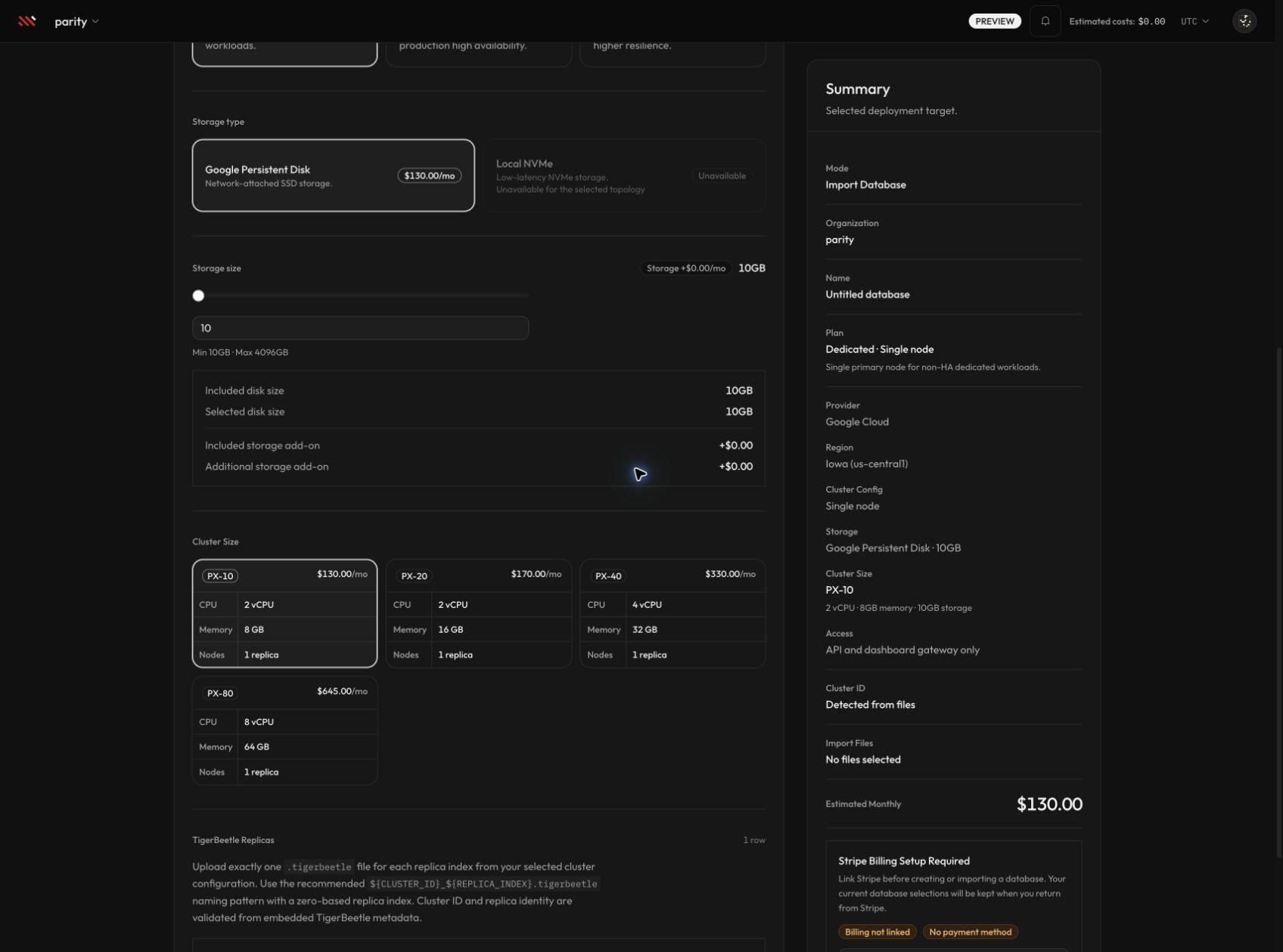
- Select a supported storage type, storage size, and cluster size for the hosted target. Review disabled choices and any storage warning shown by the form.
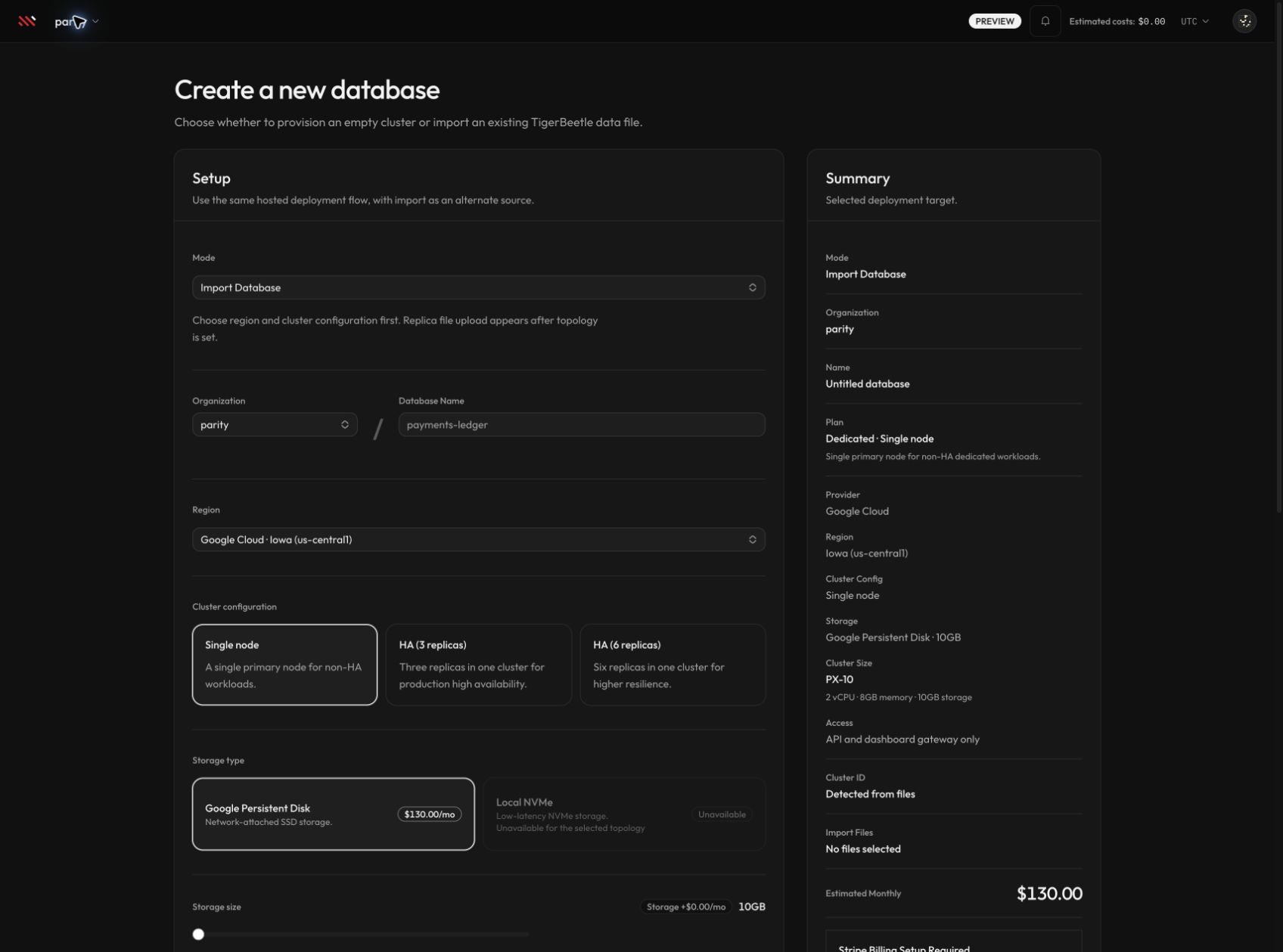
Set the hosted topology before selecting files. The form creates one upload row for each expected replica index.
- In TigerBeetle Replicas, choose the file for Replica index 0, then continue through every generated row. Put each file in the row matching its embedded replica index.
- Confirm that every row reports a detected cluster, replica index, and version. The validation summary must show one cluster ID, one version, and complete replica coverage such as
0, 1, 2.
The summary is populated from embedded TigerBeetle metadata. Select the image to open the full file and upload controls.
- Review Summary, including the target plan/topology, provider, storage, cluster size, detected cluster ID, file list, and estimated monthly price.
- If billing is not ready, have an owner or administrator complete the Stripe action and return to the preserved import draft.
- Select Import Database. Parix uploads the files in 32 MiB parts, finalizes the staged objects, and shows upload progress while preparing the import request. Keep the page open until the upload and submission finish.
Expected result
Parix redirects to the new database dashboard and queues the import workflow. The profile remains Provisioning while Parix prepares the target infrastructure and imports the staged replica set. It becomes Ready after the workflow completes.
If the database record was created but the workflow could not be queued, the dashboard action returns a message that starts with Database created but import could not be started. Do not submit another import with the same name; open the created database and diagnose the workflow state first.
Validation and limits
Parix rejects the import before workflow creation when:
- a file does not end in
.tigerbeetleor its superblock cannot be read - the number of files does not match the selected topology
- files contain different cluster IDs, TigerBeetle versions, or replica counts
- a replica index is duplicated, missing, or placed in the wrong upload row
- the selected topology does not match the embedded replica count
- the imported TigerBeetle version is newer than the platform target version
- the target catalog selection is unavailable or incompatible
- organization billing is not ready
- the target database name already exists in the organization
Import file uploads are private staged objects. A completed upload session is consumed by the import; changing the selected replica files discards previously staged sessions and requires a new upload.
Troubleshooting
For file validation, billing, catalog selection, or workflow failures, see Provisioning and configuration. If the dashboard reports an expired or missing upload, select and upload the complete replica set again.
Next steps
- Wait for Ready, then generate credentials in API keys.
- Verify a read in Connect to a database.
- Review supported post-import operations in Configurations.