Databases overview
Find databases, switch list views, and read the database dashboard.
The Databases page is the organization-level starting point for creating, importing, and opening databases. Each database then has its own dashboard and plan-specific navigation.
Open the database list
Select the organization, then select Databases in the sidebar. If the organization has no databases, the page shows an empty state. Open New database to choose either New database or Import database.
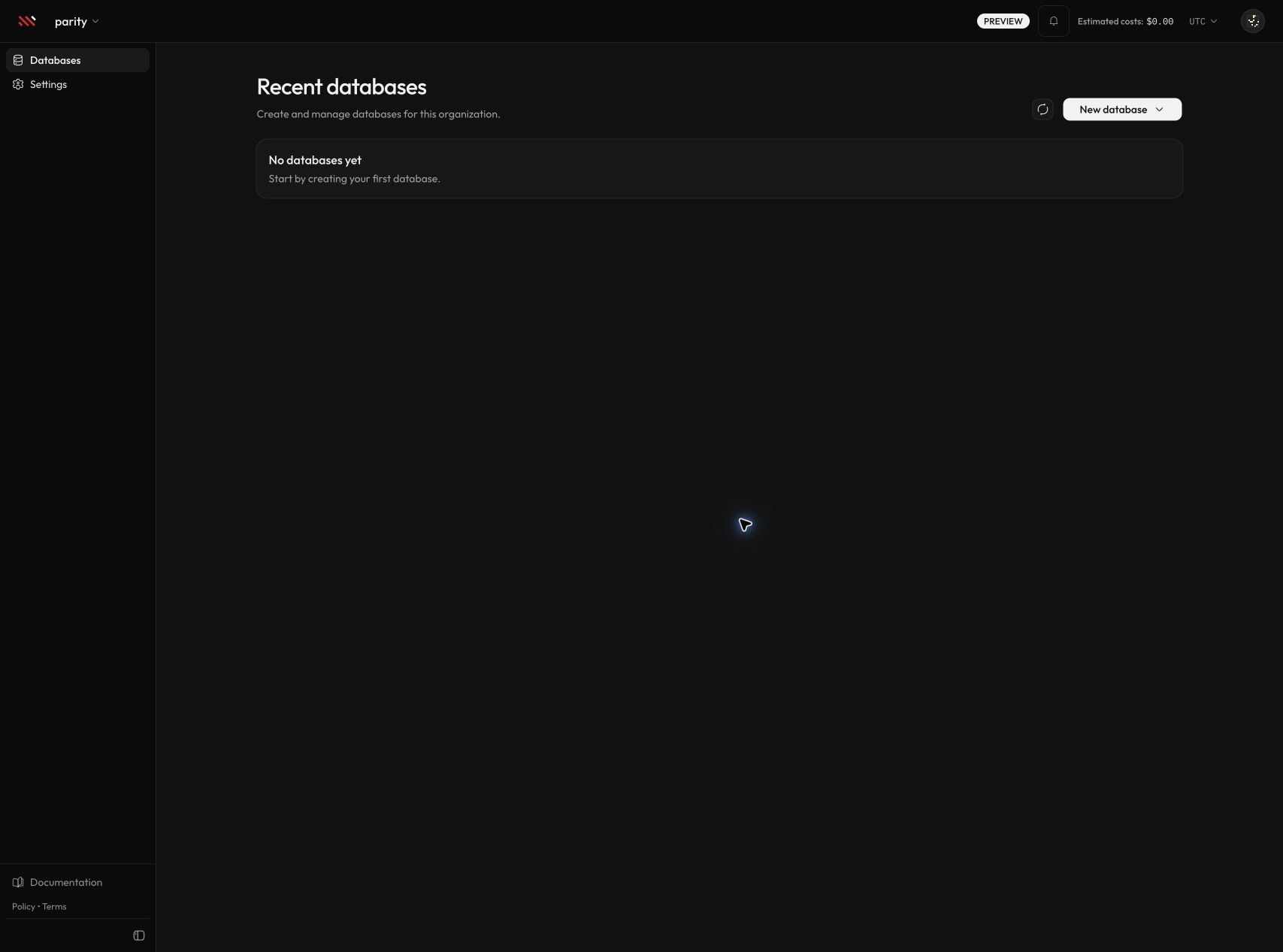
Select the screenshot to open it at full size.
When databases exist, use Card or List to change the layout. The selection is stored in the page URL, so it can be bookmarked. Select the refresh button to reload the current organization’s database data.
Both layouts show the information needed to identify a database:
- name and database ID
- plan
- region
- list-level status
- last updated date
- an action to open the database
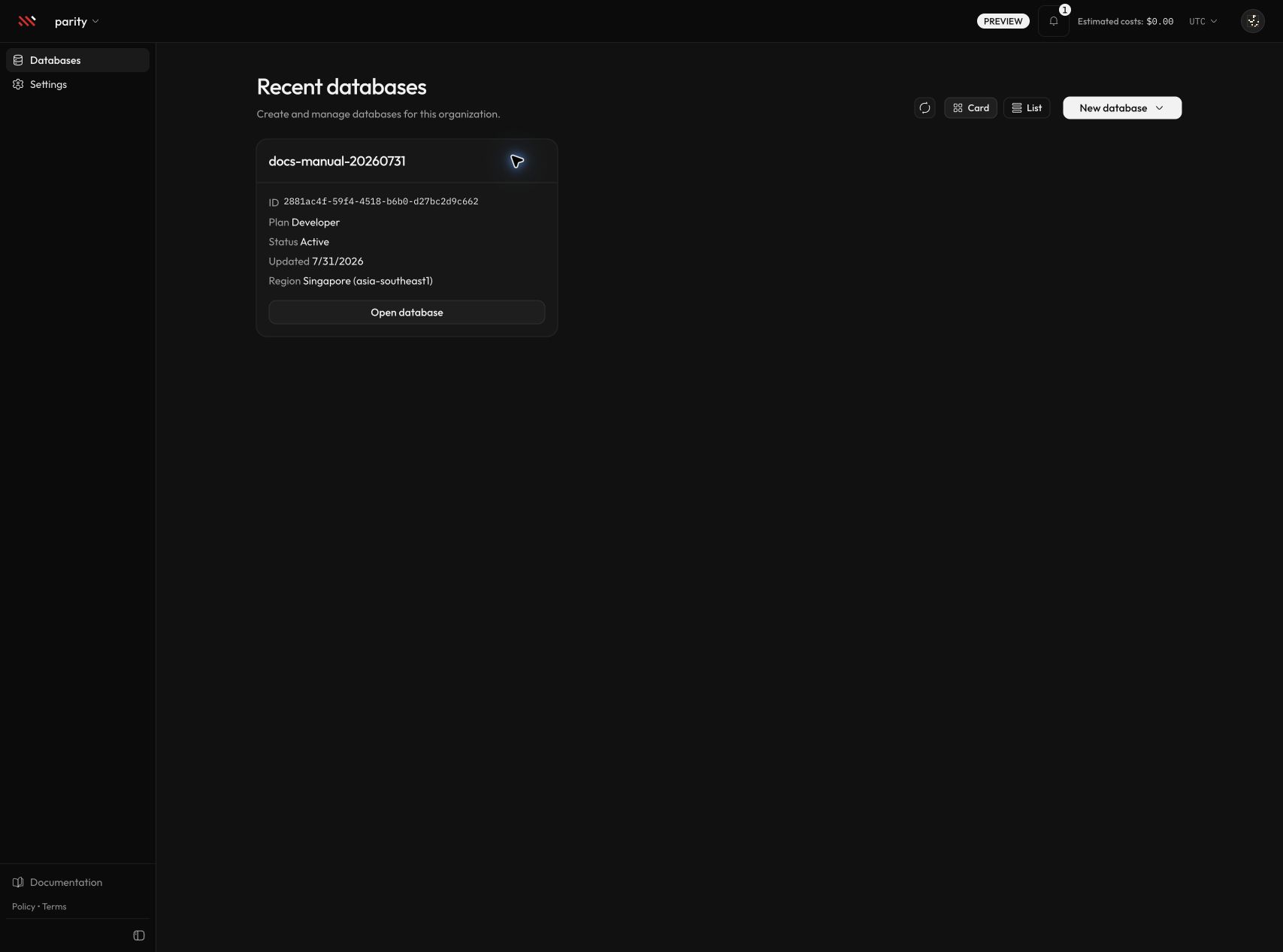
The organization list is limited to the 12 most recently created databases. Its status is deletion-focused: it shows Active, Deleting, or Delete failed. Open a database to see its provisioning or readiness status.
Read the database dashboard
Select a database name or Open database. The dashboard combines the current lifecycle status, topology, plan usage, and connection details.
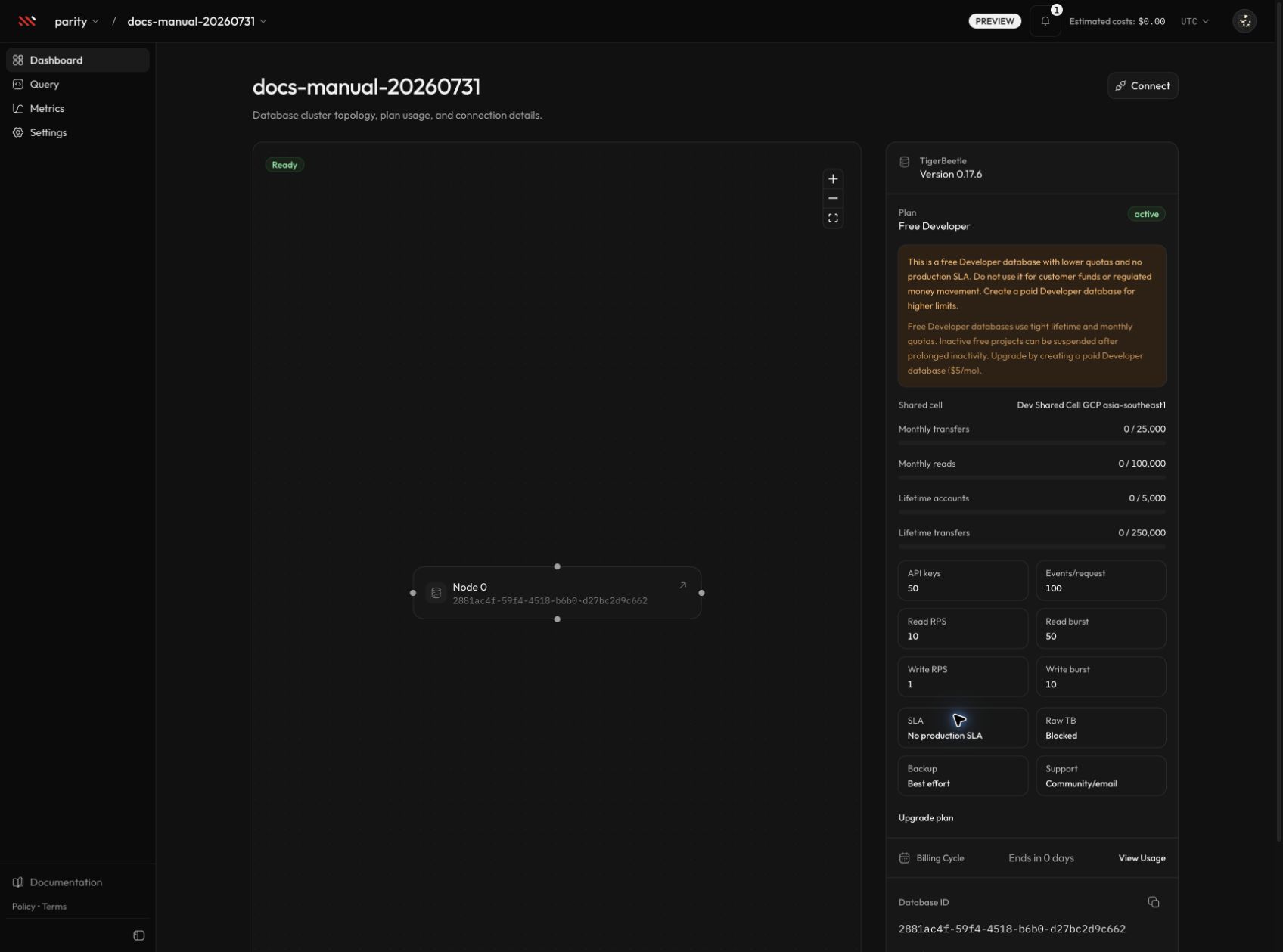
The main areas are:
- Status and topology — the current effective status and the database nodes. Dedicated databases can link from the topology to cluster settings.
- Plan — the plan name, project status, and applicable entitlements. Developer databases show quota consumption and limits; dedicated databases show cluster-profile policy.
- Database details — TigerBeetle version, provider and region, database ID, and estimated monthly configuration cost.
- Billing cycle — the View usage action opens organization Billing at Invoices and documents. Select Billable usage there for metered usage. The estimated monthly configuration price is not an invoice total.
- Connect — the guided connection flow for the selected database.
Developer shared dashboards omit host size, host CPU, host storage controls, and the provider cluster ID because those resources belong to a shared cell rather than to one project.
Next, see Shared and dedicated databases or Provisioning and database status.